
An interactive dashboard is a single-screen view of key metrics that users can filter, cross-filter and drill into, so it answers follow-up questions instead of only displaying a number. Clicking a region, a month or a product changes every chart on the screen to match, and clicking a figure opens the detail behind it.
A static dashboard tells a reader that operating expenses are 8% over budget. An interactive one lets the same reader find out which department, which month and which cost category caused it, without asking an analyst for a new report.
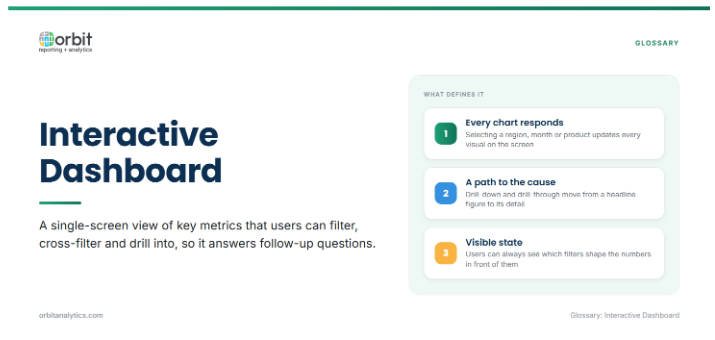
That shift, from reading a dashboard to questioning it, is the whole point. The layout still matters, but the value comes from how quickly a user can get from a headline to its cause.
Core Interactive Features
Most interactive dashboards combine a common set of controls:
- Filters and slicers: narrow every visual on the page to a business unit, region, period or product line.
- Cross-filtering: clicking a bar or segment in one chart filters all the other charts, so relationships show up immediately.
- Drill-down and drill-through: drill-down moves to the next level of a hierarchy, such as from year to quarter; drill-through opens a separate detailed view, such as the transactions behind a figure. See drill-down analysis for the technique in depth.
- Tooltips: hovering over a point shows exact values and supporting measures without cluttering the chart.
- Time controls: date pickers and period toggles switch between month, quarter, year to date and prior-year comparison.
- Saved views: users bookmark a combination of filters, such as their own region, and return to it.
How Users Explore an Interactive Dashboard
The features matter most when they follow the way people actually investigate a number:
- Scan the headline KPIs: the top row shows the few measures that matter, with a comparison to target or prior period.
- Filter to their scope: a regional manager filters to their region, so every visual reflects their own responsibility.
- Cross-filter to find the driver: clicking the weakest product or customer segment shows which part of the business explains the variance.
- Drill down a level: the user moves from the segment to the individual product, account or site.
- Drill through to transactions: the final click opens the invoices, orders or journals behind the figure.
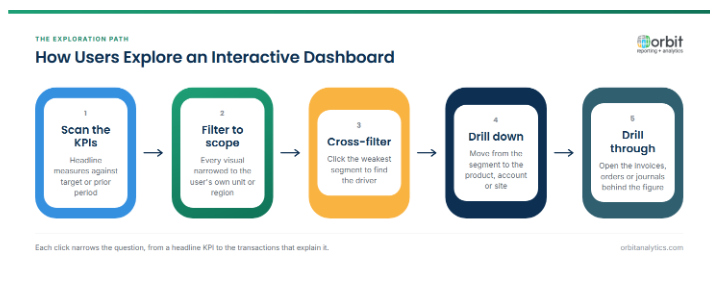
Each step narrows the question. A well-designed dashboard supports the whole path; a weak one stops at step one and sends the user to a spreadsheet.
Interactive Dashboard Examples by Function
Interactive dashboards appear in every function, each with its own headline measures and favorite interactions:
| Function | Headline KPIs | Typical interaction |
|---|---|---|
| Finance | Revenue, operating expenses, budget variance, cash position | Drill from a variance to the cost center and then the journals |
| Procurement | Spend by supplier, PO cycle time, contract compliance | Cross-filter spend by category to see supplier concentration |
| Supply chain | Inventory value, on-time delivery, stock-outs | Filter by warehouse, drill to the late orders |
| Sales | Bookings, pipeline, win rate | Filter by region and rep, drill into individual deals |
| HR | Headcount, attrition, time to hire | Cross-filter attrition by department and tenure |
Design Principles for Interactive Dashboards
Interactivity makes a dashboard more powerful, and also easier to misuse. A few principles keep it useful:
- Start from the question: decide what decision the dashboard supports before choosing charts. Every visual should help answer that question.
- Keep the tile count low: a handful of well-chosen visuals is easier to explore than twenty. Detail belongs one click away, not on the first screen.
- Use sensible defaults: the dashboard should open on the view most users need, such as the current month and their own unit, so the first screen is already useful.
- Make the filter state visible: users should always see which filters are applied. Hidden filters are the most common reason two people read different numbers from the same dashboard.
Interactive Dashboards on Oracle ERP Data
Oracle ERP data is rich but hard to explore directly. Oracle Fusion Cloud and EBS spread a single business event across many tables, with codes, hierarchies and flexfields that only make sense once they are joined and translated. A dashboard built on an export loses the link back to those tables, so the drill-through at the end of the exploration path is often missing.
Orbit Analytics provides personalized, interactive dashboards across business functions on Oracle ERP data, with drill-down from a KPI to transaction-level detail. A user can move from a revenue figure to the transactions that make it up without leaving the dashboard.
Common Problems With Interactive Dashboards
The problems are rarely about chart types. They are about speed, trust and focus:
- Slow queries: if each click takes many seconds, users stop exploring and go back to static reports.
- Too many controls: a dashboard with fifteen filters puts the burden of design on the user, who has to work out which combination matters.
- Inconsistent definitions: when revenue or headcount is calculated differently on two dashboards, users stop trusting both.
- Stale data: a dashboard refreshed weekly cannot support daily decisions. Orbit Analytics addresses this by reading Oracle ERP data directly, so dashboards reflect current figures without a nightly export and reload.
Interactive Dashboard vs Static Dashboard vs Interactive Report
The three are related but built for different jobs:
| Aspect | Static dashboard | Interactive dashboard | Interactive report |
|---|---|---|---|
| Purpose | Display status at a glance | Monitor and investigate | Document and analyze in detail |
| Layout | Fixed set of visuals | One screen of visuals with controls | Rows and columns, often many pages |
| User action | Read only | Filter, cross-filter, drill | Sort, filter, pivot, export |
| Typical user | Executives on a wall screen or in a pack | Managers who own the numbers | Analysts and accountants |
Use a static dashboard where the audience only needs status, an interactive dashboard where the audience needs to find causes, and interactive reporting where the output is a detailed, shareable document.
Frequently Asked Questions
Q1. What makes a dashboard interactive?
A dashboard is interactive when users can change what it shows, through filters, cross-filtering, drill-down, drill-through or time controls, rather than only reading a fixed set of charts.
Q2. What is the difference between drill-down and drill-through?
Drill-down moves to the next level of the same hierarchy within the dashboard, such as from quarter to month. Drill-through opens a separate, more detailed view, such as the transactions behind a figure.
Q3. What is cross-filtering?
Cross-filtering means that selecting a value in one chart filters every other chart on the dashboard. It shows how a selection, such as one product line, affects every other measure on the screen.
Q4. How many charts should an interactive dashboard have?
There is no fixed rule, but a small number of focused visuals works better than many. If the first screen needs scrolling to understand, the detail probably belongs one click away.
Q5. Is an interactive dashboard the same as an interactive report?
No. An interactive dashboard is a single-screen monitoring view built around a few KPIs. An interactive report is a detailed document, usually tabular, that users sort, filter and export.
Q6. Can interactive dashboards use real-time data?
Yes, when the dashboard queries the source system or a frequently refreshed store rather than a periodic extract. How fresh the data needs to be depends on the decision: operations often need near real time, while monthly finance reviews do not.
Interactive dashboards earn their place when a user can get from a headline KPI to the transaction behind it in a few clicks. Orbit Analytics delivers that path on live Oracle ERP data. Request a demo to explore a dashboard on your own data.
